Tuesday, November 29, 2011

Monitoring Internet Connection using IP SLA

Our company may have two connection to the internet through 2 ISPs. If we want to use one connection as primary and other as backup, we can use IP SLA to monitor the link. It detects the link failure even if the connection between modem and ISP fails. So it helps to switch over to the backup path automatically as soon as the primary path is down.

ip sla router

Step1 : Configuring SLA process

R1(config)#ip sla 1

R1(config-ip-sla)#icmp-echo 8.8.8.8

R1(config-ip-sla-echo)#frequency 5 (Means, every 5 second send icmp-echo packet to the ip 8.8.8.8. This can by any reliable IP on internet)

R1(config-ip-sla-echo)#exit

Step2: Scheduling SLA process

R1(config)#ip sla schedule 1 start-time now life forever (Means, start the sla process now and don’t end)

Note: we can check the process using the following command

R1#show ip sla statistics

Step3: Create a track object to track the change. It is used to inform the router about the current condition

R1(config)#track 10 rtr 1 reachability (this will inform the router if any reachability problem occurs. rtr is the old name of IP SLA)

R1(config-track)#exit

Step4: Create two static route two both ISPs with some tweaks

R1(config)#ip route 0.0.0.0 0.0.0.0 fastEthernet 0/0 track 10

R1(config)#ip route 0.0.0.0 0.0.0.0 fastEthernet 0/1 2

Now router will select ISP1 as primary path because of administrative distance is lower. If the link to ISP1 is down, then router automatically switch the connection to ISP2

Monday, November 28, 2011

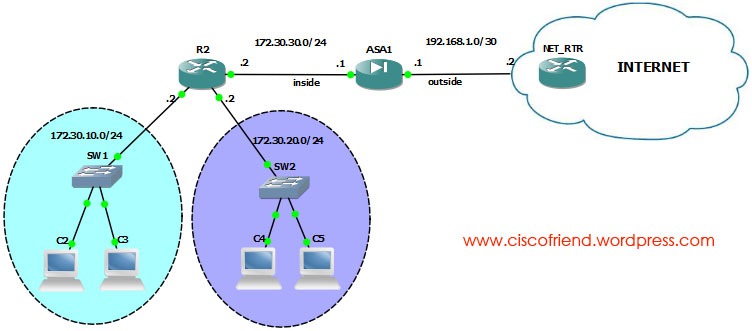
ASA static/Default Routing configuration

ASA STATIC DEFAULT ROUTING
Syntax of static route configuration is :
Route <interface-name> <ip address> <netmask> <gateway ip> [distance]
Objects:
  • Configure static routing to inside interface
ASA1(config)#route inside 172.30.10.0 255.255.255.0 172.30.30.2 1
ASA1(config)#route inside 172.30.20.0 255.255.255.0 172.30.30.2 1
  • Configure default route to internet
ASA1(config)#route outside 0.0.0.0 0.0.0.0 192.168.1.2
Note: we can use the command “route outside 0 0 192.168.1.2” for default route, both are same.

Saturday, November 26, 2011

Network Time Protocol (NTP) configuration

One time updatentp

If you want to synchronize with NTP server just now, then execute the following command:

$ sudo ntpdate 1.in.pool.ntp.org

Here 1.in.pool.ntp.org is the NTP server we are synchronizing with. You can find closer NTP server to your country from www.pool.ntp.org

NTP automatic synchronization through service

$ sudo apt-get install ntp

$ sudo service ntp start

If you want to synchronize with more closer NTP servers, then edit ntp.conf file by replacing the existing NTP servers with closer servers.

$ sudo nano /etc/ntp.conf

now change ntp servers if you want and save the file and restart the service

$ sudo service ntp restart

NOTE: if you are running other distributions than Ubuntu, then login as root and run the command without “sudo” in front of it

Friday, November 25, 2011

automatic login Ubuntu 11.10

sudo nano /etc/lightdm/lightdm.conf

now under [SeatDefaults], add the following

autologin-user=binoy

Note: here username is “binoy” . change it to your user name

Wednesday, November 23, 2011

Linux/Unix file system Hierarchy

/ root directory
/bin command binaries
/boot boot loader
/dev devices
/etc configuration files
/home user home directories (MacOSX uses ‘USERS’ directory to store home directories of users)
/lib library files for executables
/proc virtual file system (information about current running system)
/root root user home directory
/sbin system binaries (binaries that should run by system not users)
/tmp temporary file storage
/usr user binaries , often read only; (install by user like open office)
/var variable files, log, mail
/media mount place for removable media

/mnt

legacy location for removable media